 Zinn® SEO
Speed up your site with the Zinn® CDN
Serve your images, CSS, scripts and fonts from servers close to every visitor, switched on in one click from WordPress.
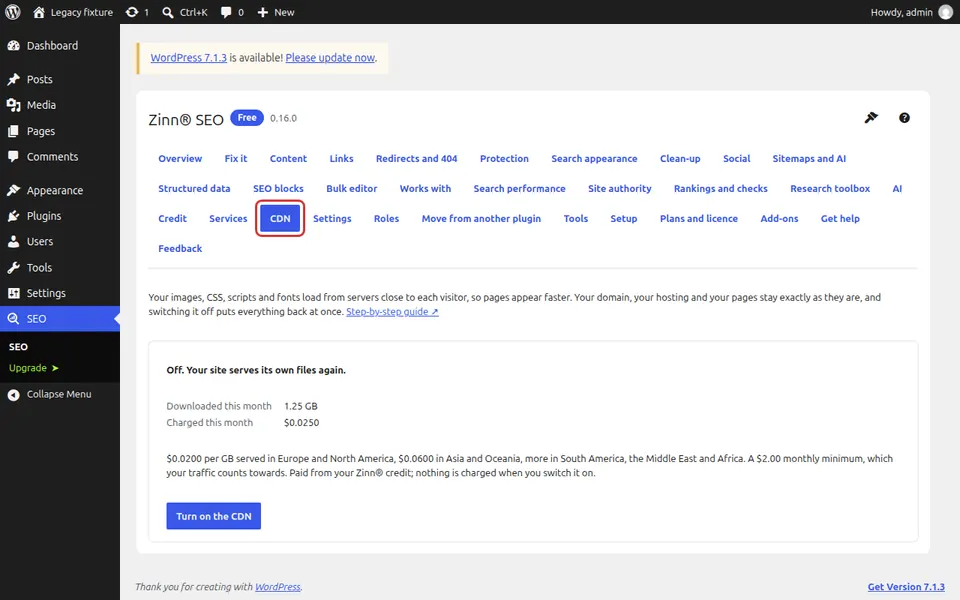
Open the CDN screen
In WordPress, go to SEO, CDN. If the site is not connected to a Zinn® account yet, connect it first on the Credit screen. A site on Zinn® hosting already has our CDN: turn on Premium CDN in your Zinn® dashboard instead.
Check the price
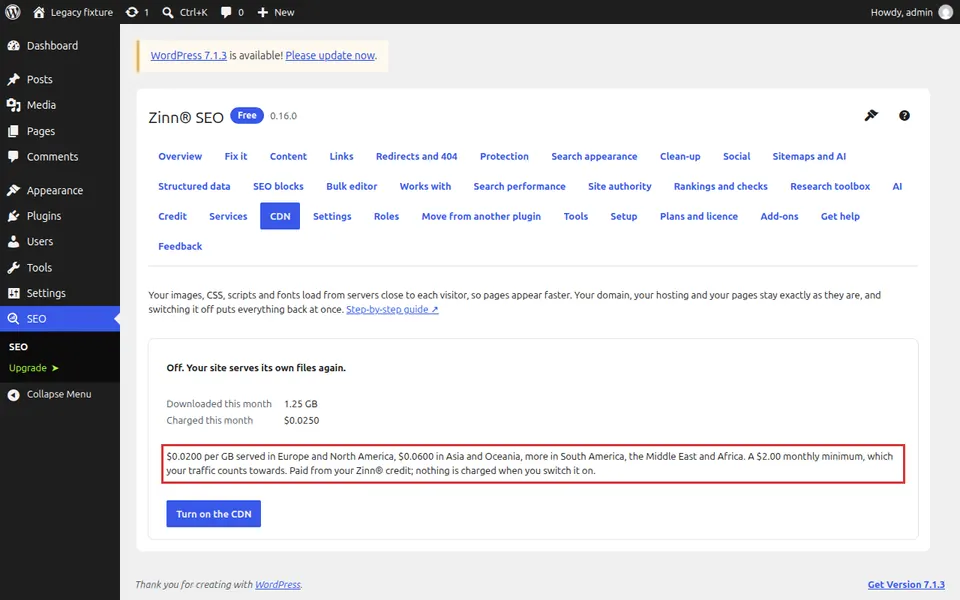
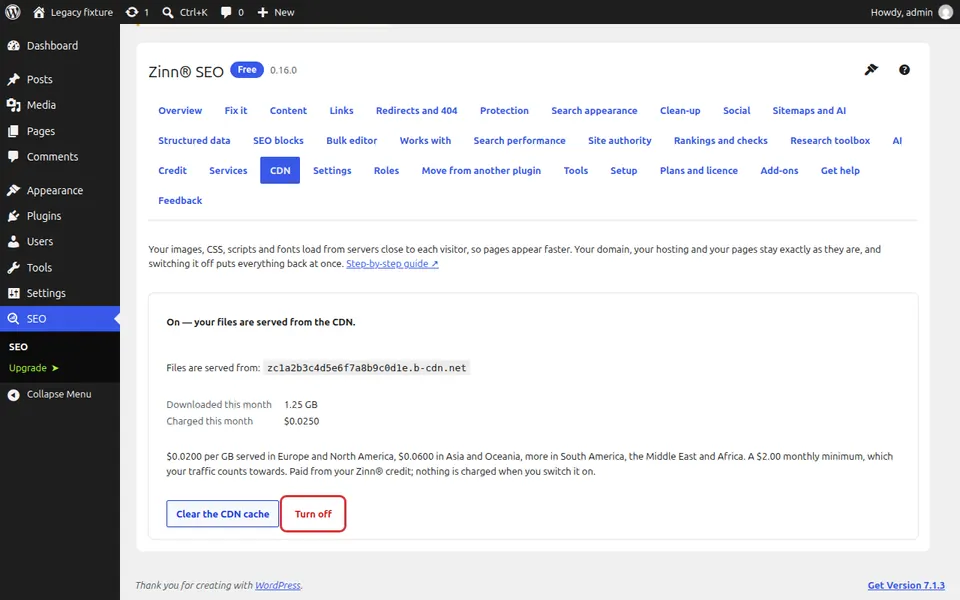
The screen shows what the CDN costs: a small price per GB that visitors download, lowest in Europe and North America, and a monthly minimum that your traffic counts towards. It is paid from your Zinn® credit, and nothing is charged when you switch it on.
Turn it on
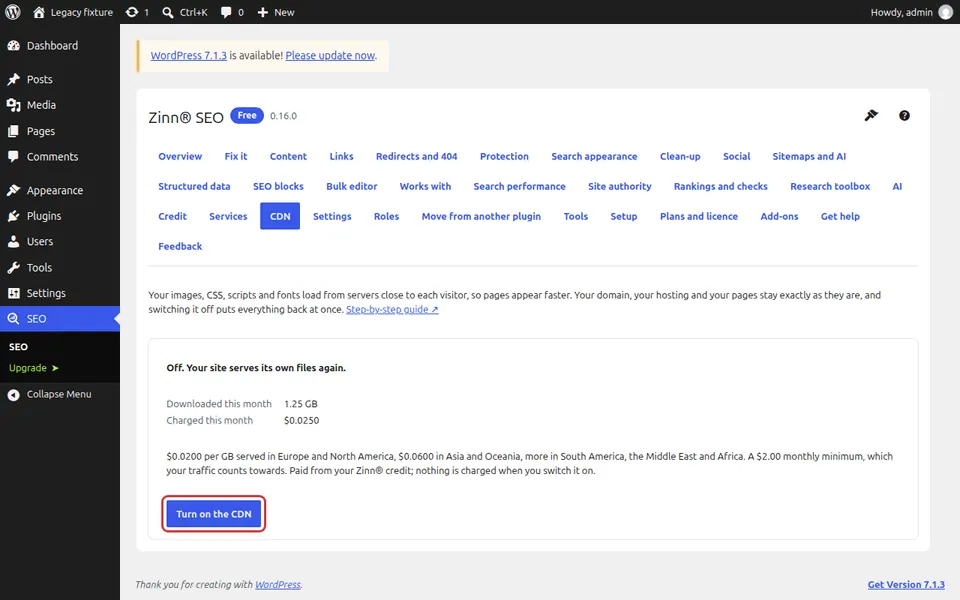
Press Turn on the CDN. Within seconds your images, CSS, scripts and fonts load from the CDN address shown on the screen. Your domain, your hosting and your pages stay exactly as they are, and nothing is added to your visitors' pages.
Watch the traffic and the cost
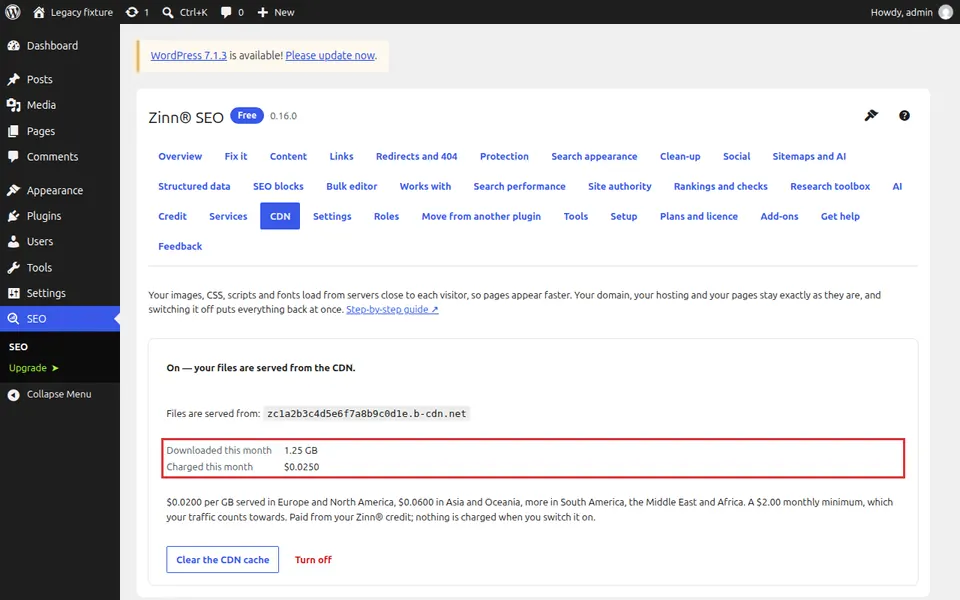
The screen shows how much visitors downloaded from the CDN this month and what it cost. When you replace an image or update your theme or a plugin, the CDN's copy is refreshed for you a minute later; press Clear the CDN cache to refresh everything at once.
Switch it off, or let it pause
Press Turn off and your site serves its own files again straight away. If your credit runs out, or the account has an unpaid bill, the CDN pauses by itself and your site keeps working from your server; add credit or pay the bill and it comes back within the hour.
From the same team
Want fast hosting to go with it?
Zinn Digital® hosts WordPress on its own servers, with a CDN, DNS, TLS and daily backups included in every plan.