 Zinn® SEO
See your Google Maps rank street by street
Your position on Google Maps depends on where the searcher is standing. The map rank grid checks your position from every point of a grid around your business and colours each point, so you see exactly where you win and where you do not. You pay for each check from your Zinn® credit, and the price is shown before anything runs.
Open the map rank grid
Go to SEO, Research toolbox, Map rank grid.
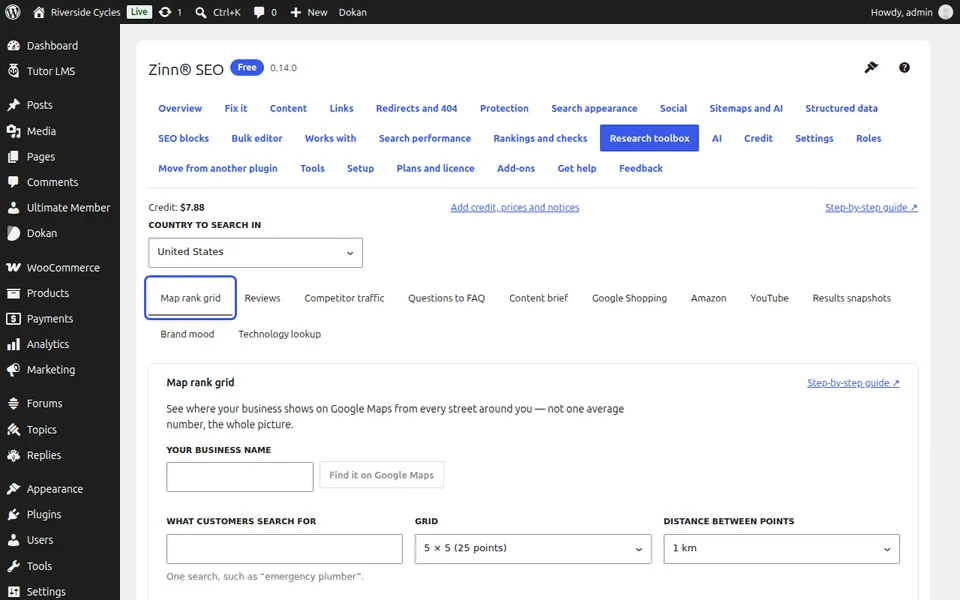
Find your business
Type your business name and press Find it on Google Maps (free). Pick yours from the list with This is my business, and check the address: chains share names.
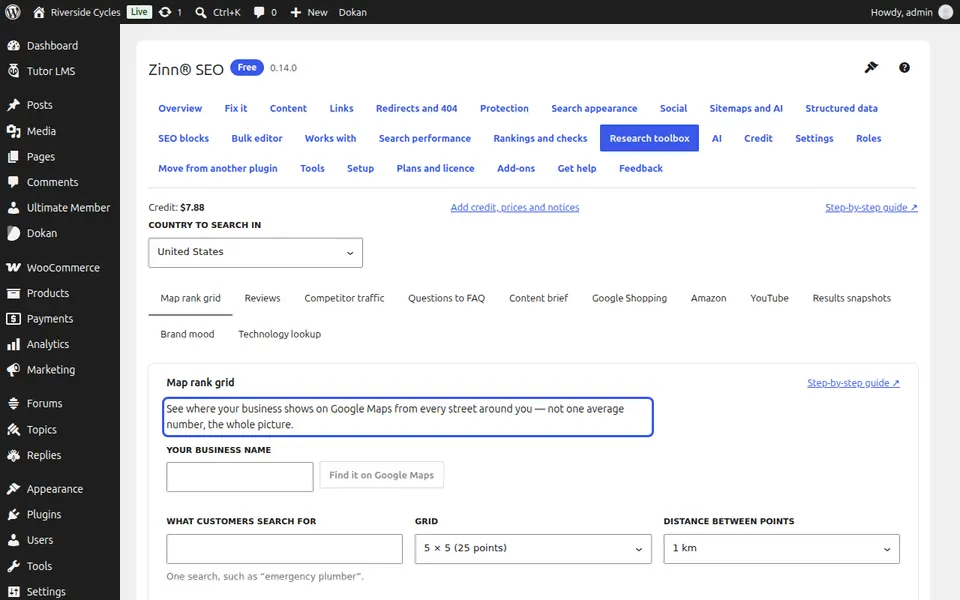
Type what customers search for
One search, for example emergency plumber.
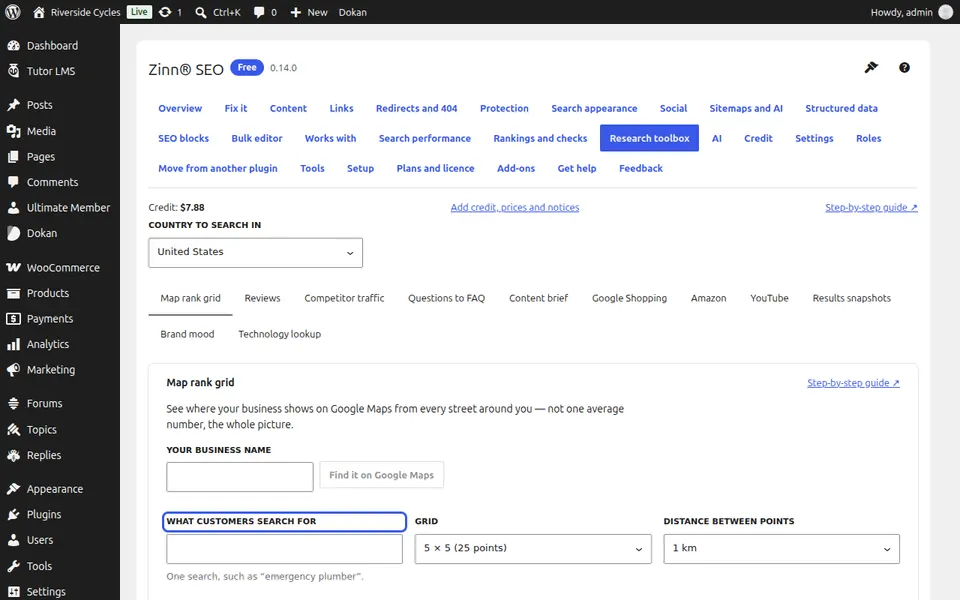
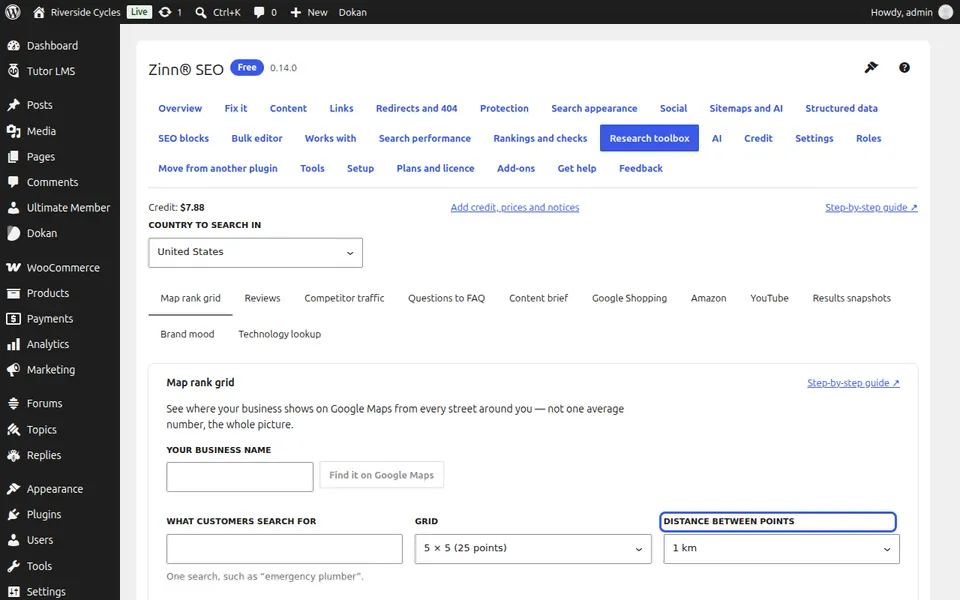
Choose the grid and the distance
Choose 3 × 3 (9 points), 5 × 5 (25), 7 × 7 (49) or 9 × 9 (81), and the distance between points: 0.5 or 1 km suits a city centre, 2 to 5 km a county-wide service.
Check your map position
Check the price (one map point each), press Check my map position, then Yes, run it.
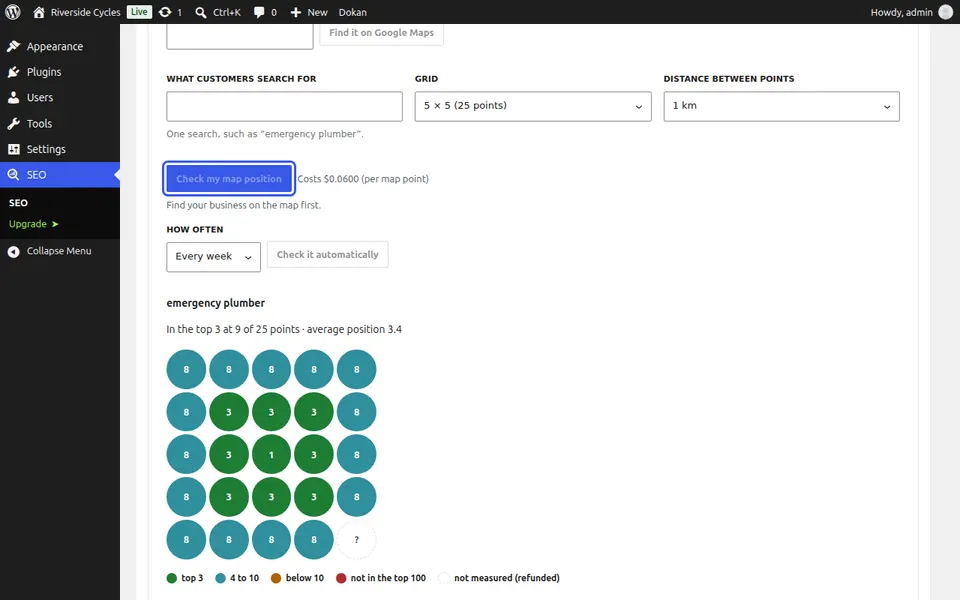
Read the grid
Green is top 3 (you show in the map pack), blue is 4 to 10, orange is below 10, red is not in the top 100, and a dashed point was not measured and is refunded. North is at the top.
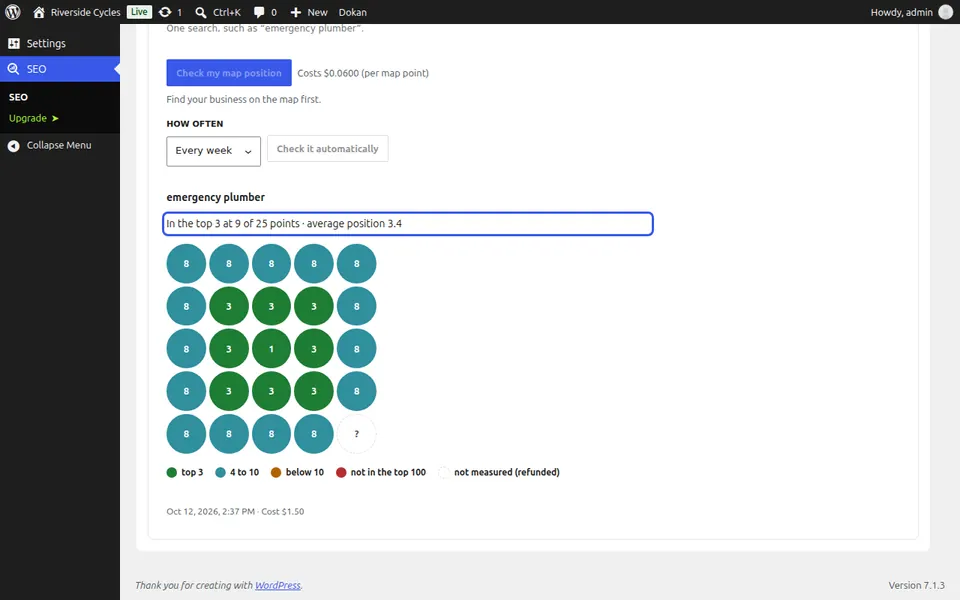
Track your progress
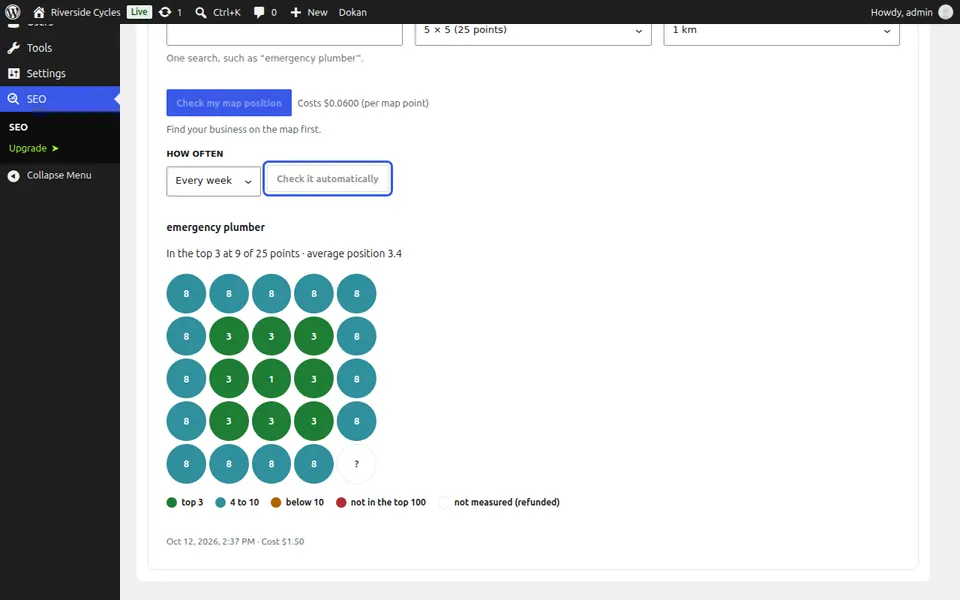
To see the effect of changes to your Business Profile, press Check it automatically and choose how often. To grow the green area, get reviews that mention the service and the area, keep your opening hours and categories right, and add local pages to your site.
Next guide: Read and answer your reviews
From the same team
Want fast hosting to go with it?
Zinn Digital® hosts WordPress on its own servers, with a CDN, DNS, TLS and daily backups included in every plan.