 Zinn® SEO
The Safe updates screen
Try every plugin, theme and WordPress update on a copy of your site first, install only what passes, and have an update that breaks your site put back by itself. (Pro)
Open Safe updates
In WordPress, open SEO in the menu, then Safe updates under Technical SEO in the plugin's side menu. Try every plugin, theme and WordPress update on a copy of your site first, install only what passes, and have an update that breaks your site put back by itself. (Pro)
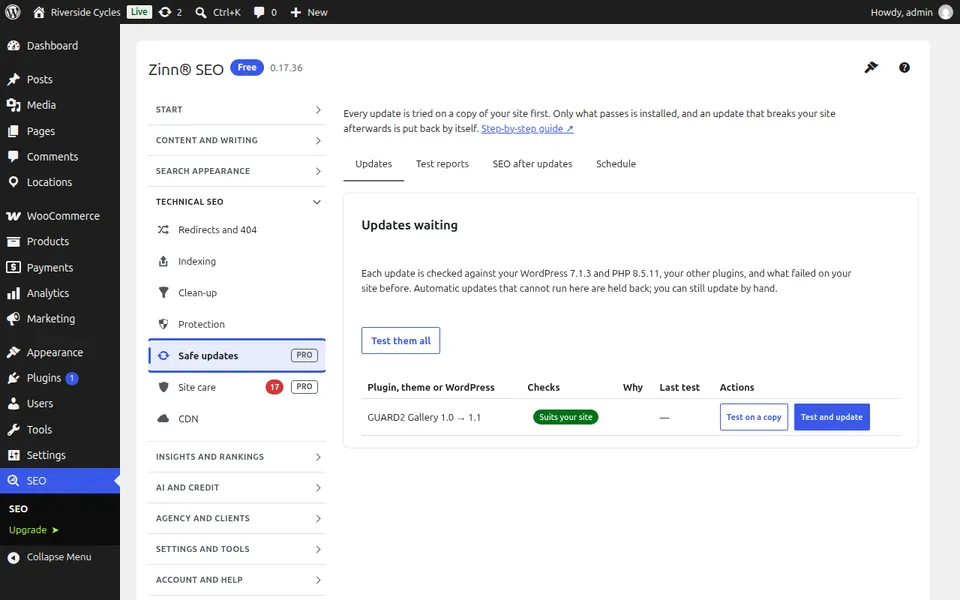
The Updates tab
Open the Updates tab. Each waiting plugin, theme and WordPress update with the version you have, the new one and its checks in plain words: your WordPress and PHP, the plugins it needs, WooCommerce, and versions that already failed here. Press Test on a copy to try it where visitors never see it, or Test and update to install it only if it passes.
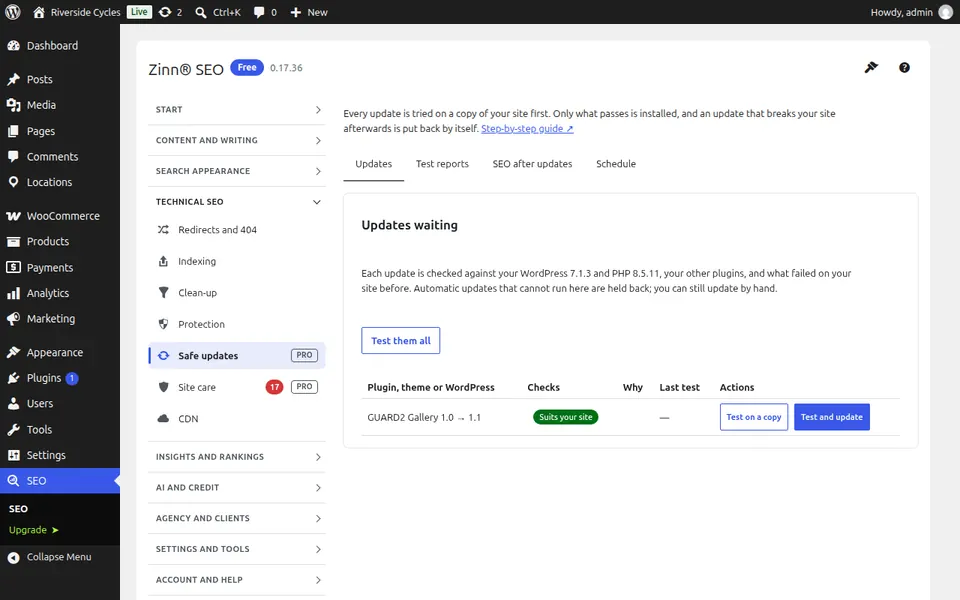
The Test reports tab
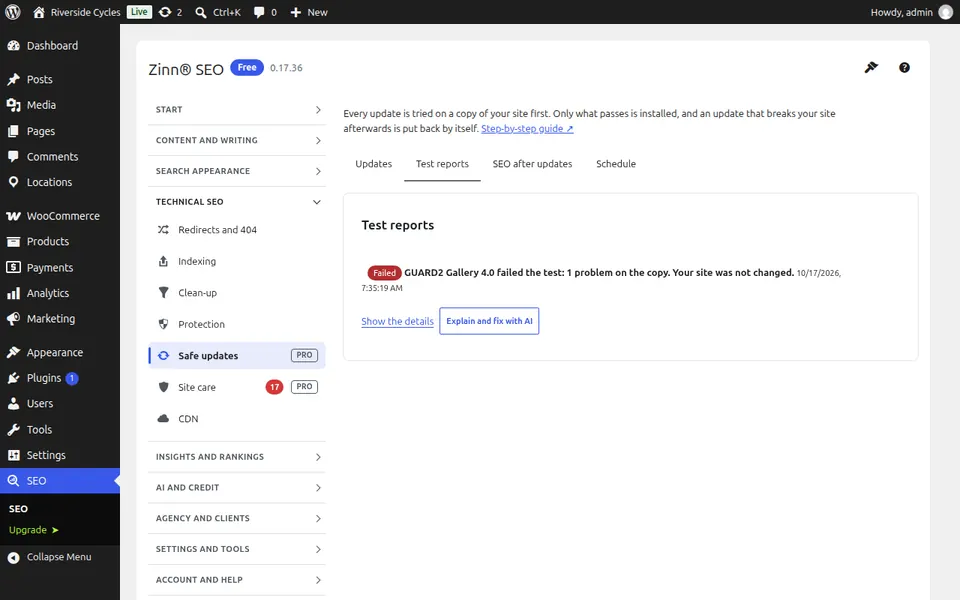
Open the Test reports tab. Every test, newest first, in one sentence: passed, passed with changes, failed, installed or put back. Show the details lists each page read with both versions and what changed, and the PHP errors the new version brought; install, put the version before back or ask the AI to explain and fix it from here.
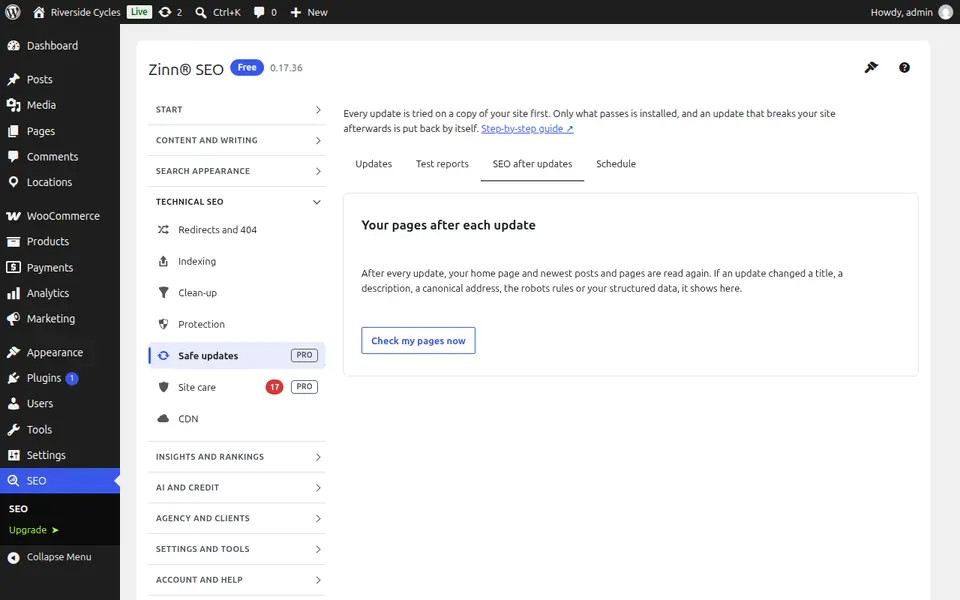
The SEO after updates tab
Open the SEO after updates tab. After every update your home page and newest posts and pages are read again: a title, description, canonical address, robots rule or structured data that changed is listed with before and after.
The Schedule tab
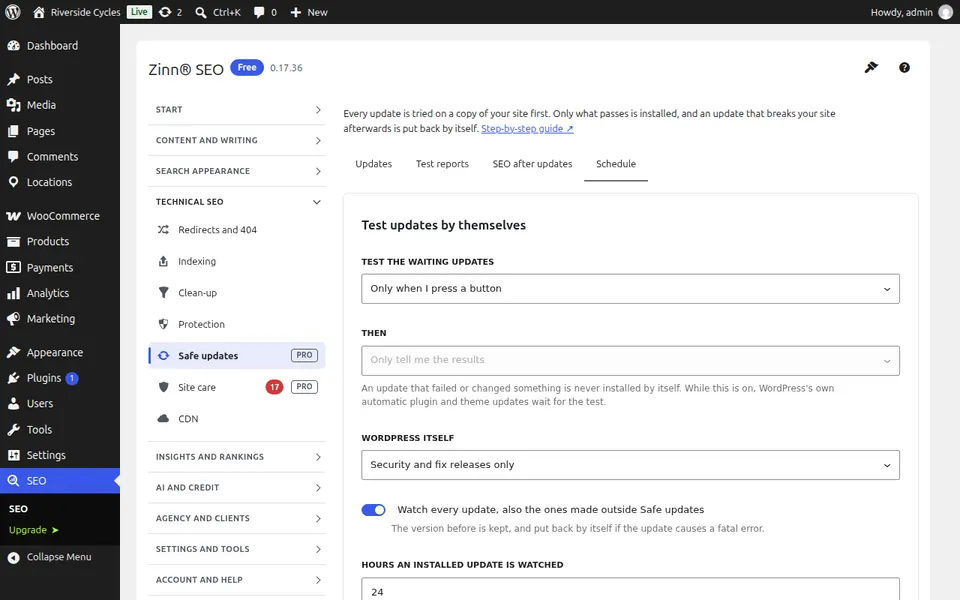
Open the Schedule tab. Test the waiting updates every day or week, install the ones that pass by themselves, include WordPress's security releases, watch every update for a day, and choose the largest database copied for a test.
Step-by-step guides for this screen
Next guide: The Site care screen
From the same team
Want fast hosting to go with it?
Zinn Digital® hosts WordPress on its own servers, with a CDN, DNS, TLS and daily backups included in every plan.