 Zinn® SEO
The Site care screen
Keep your site healthy with AI: find malware and clean it up, have your error logs read and explained, clean up the database safely and approve small code fixes. Every change is backed up first and can be undone. (Pro)
Open Site care
In WordPress, open SEO in the menu, then Site care under Technical SEO in the plugin's side menu. Keep your site healthy with AI: find malware and clean it up, have your error logs read and explained, clean up the database safely and approve small code fixes. Every change is backed up first and can be undone. (Pro)
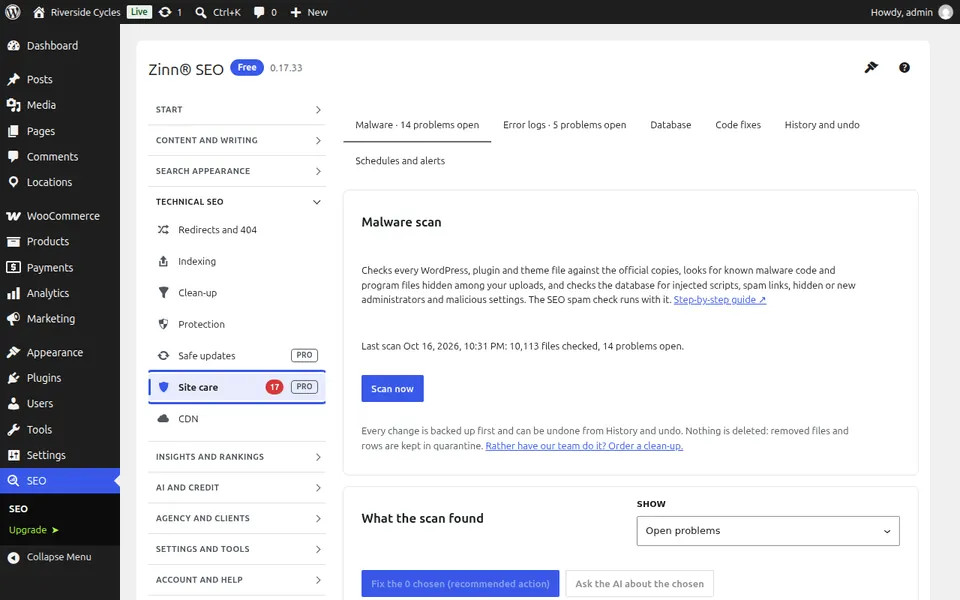
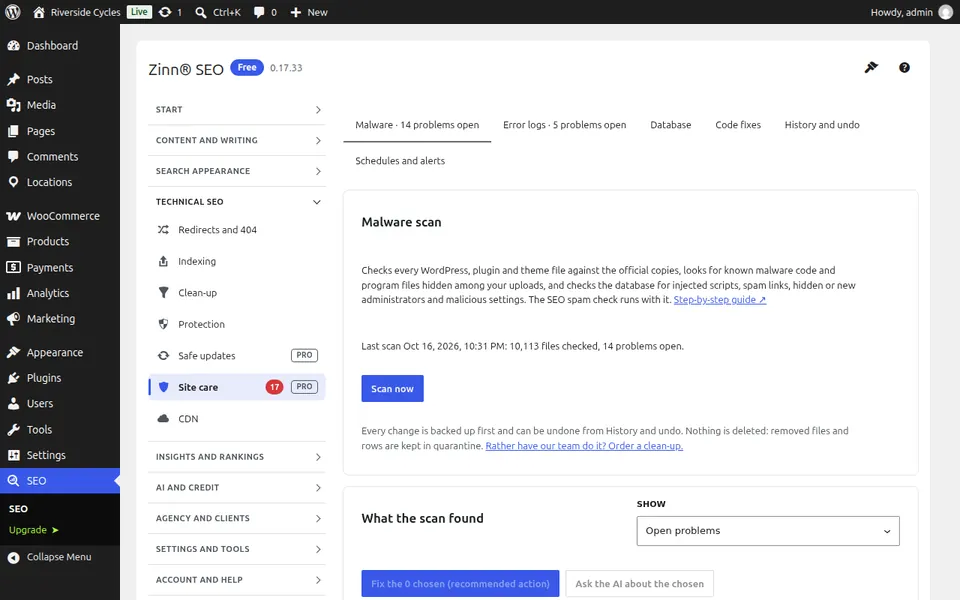
The Malware tab
Open the Malware tab. Scan your files, users, settings and posts for malware: changed WordPress files, back doors, PHP hidden in uploads, unknown admins and spam links. Each finding says what it is in plain words; fix the ones you choose and they are backed up first, quarantined, never deleted, and checked again.
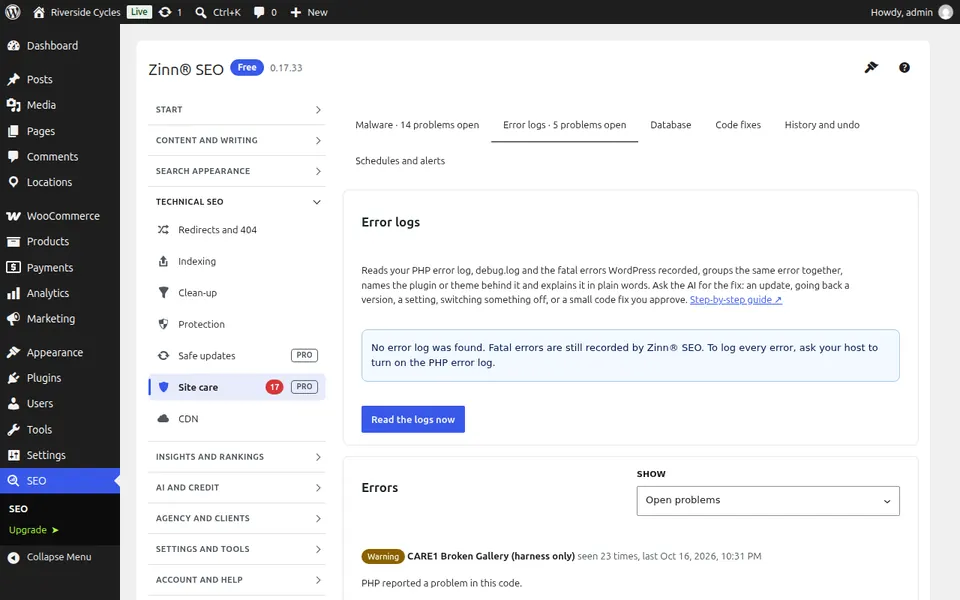
The Error logs tab
Open the Error logs tab. Read your PHP error log, debug.log and the fatal errors Zinn® SEO recorded, grouped so one repeated error shows once, with the plugin or theme behind it and the fix explained in plain words.
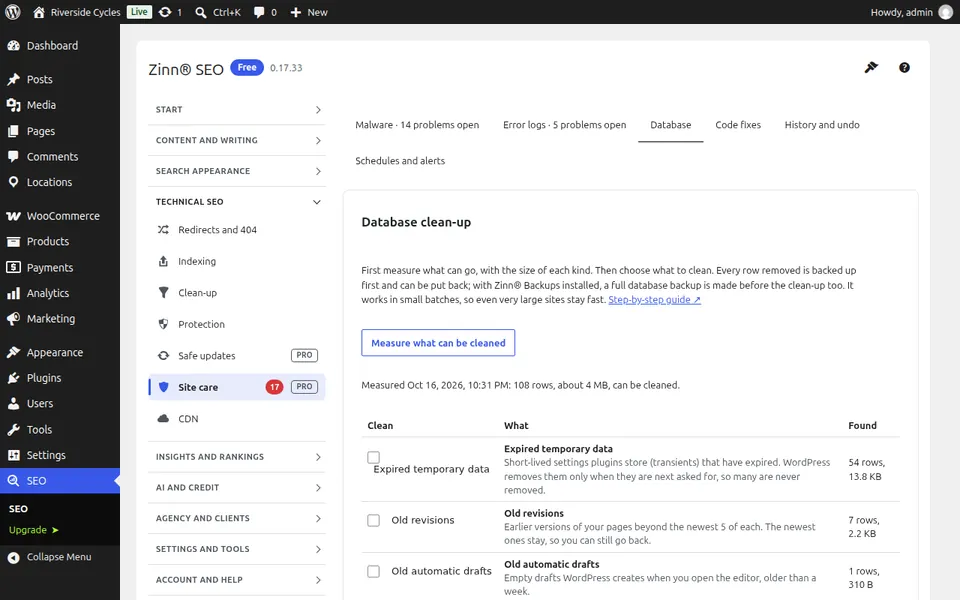
The Database tab
Open the Database tab. See what can be cleaned up and how much space it takes before anything goes: old revisions, drafts, spam, expired temporary data, orphaned rows and the settings that slow every page. Every removed row is backed up first and can be put back, with a full database backup by Zinn® Backups first when it is installed.
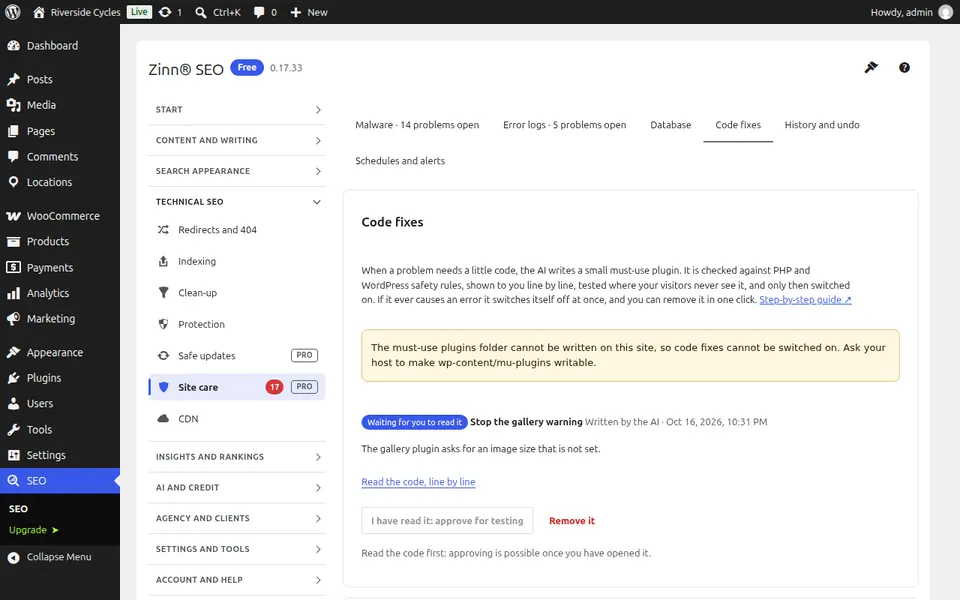
The Code fixes tab
Open the Code fixes tab. Small code fixes the AI suggests for an error: read the change, try it first, approve it yourself and it runs as a must-use plugin. It switches itself off at the first fatal error and can be removed at any time.
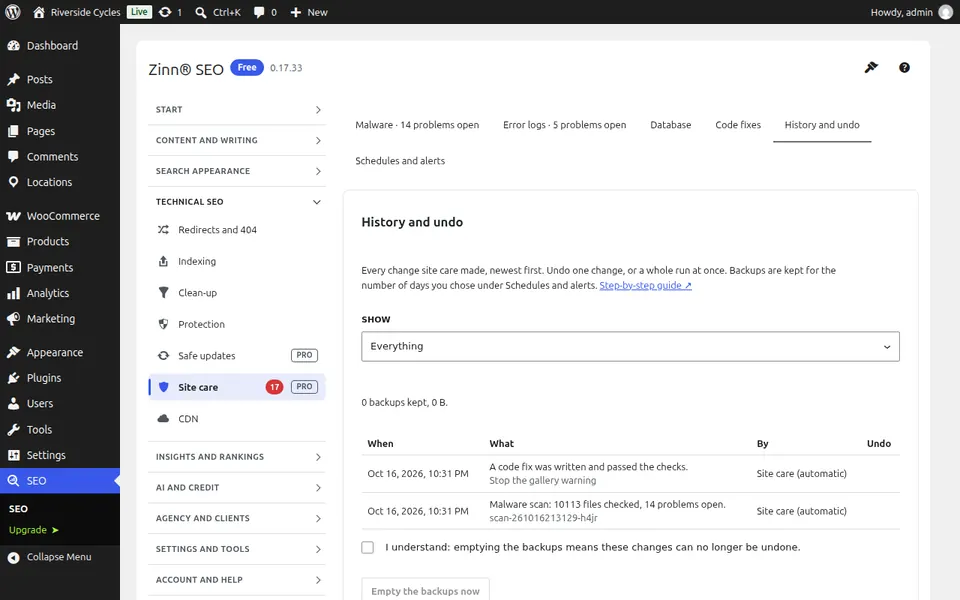
The History and undo tab
Open the History and undo tab. Everything site care changed, newest first, with its backup. Undo one change or a whole run in one click.
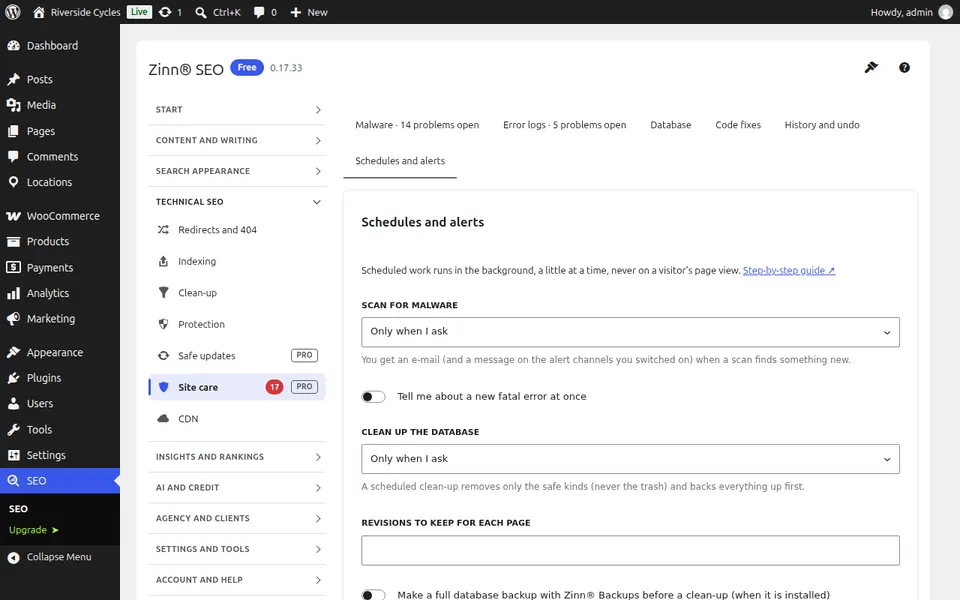
The Schedules and alerts tab
Open the Schedules and alerts tab. Choose how often the malware scan and the database clean-up run on their own, how you hear about a new finding or a new fatal error, and how long the backups of changes are kept.
Step-by-step guides for this screen
- Clean up malware on your WordPress site
- Read and fix your PHP error logs
- Clean up your WordPress database safely
- Approve small code fixes safely
Next guide: The CDN screen
From the same team
Want fast hosting to go with it?
Zinn Digital® hosts WordPress on its own servers, with a CDN, DNS, TLS and daily backups included in every plan.