 Zinn® SEO
Set structured data for many pages at once
Choose each page's type and article type, and add FAQs, how-to steps, product details and article summaries for many pages from one table, checked before saving and undone in one click.
Show the structured data column
Go to SEO, Bulk editor. Choose posts, pages or another content type, then tick Show the structured data column. Each row now shows its page type, its article type, and the FAQ, steps and details it has.
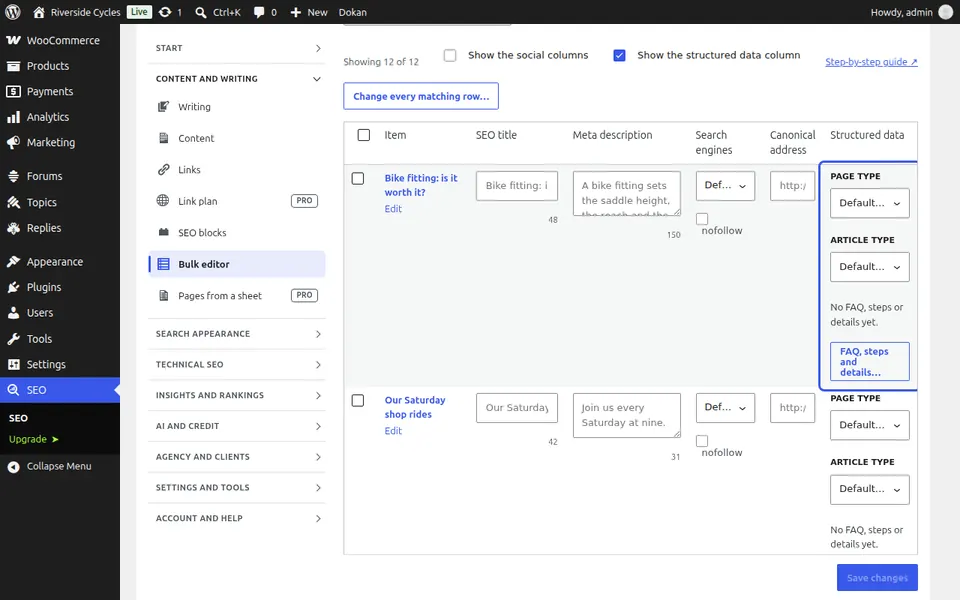
Choose the page and article type
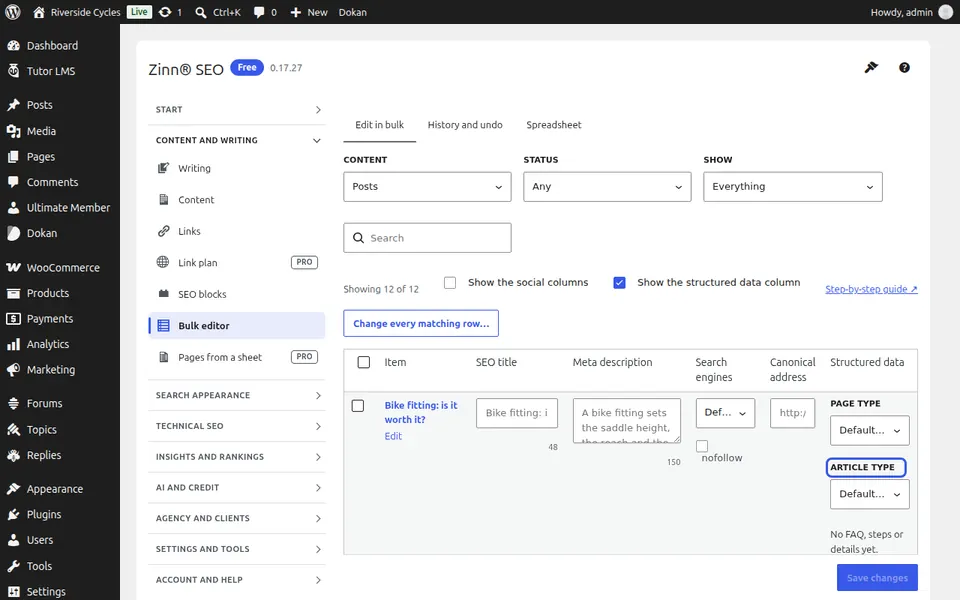
Under Page type and Article type, pick what each page is, for example About page, News article or Tech article. Default follows its content type's setting, which the list names in brackets. Choose Not an article for a page that is not one.
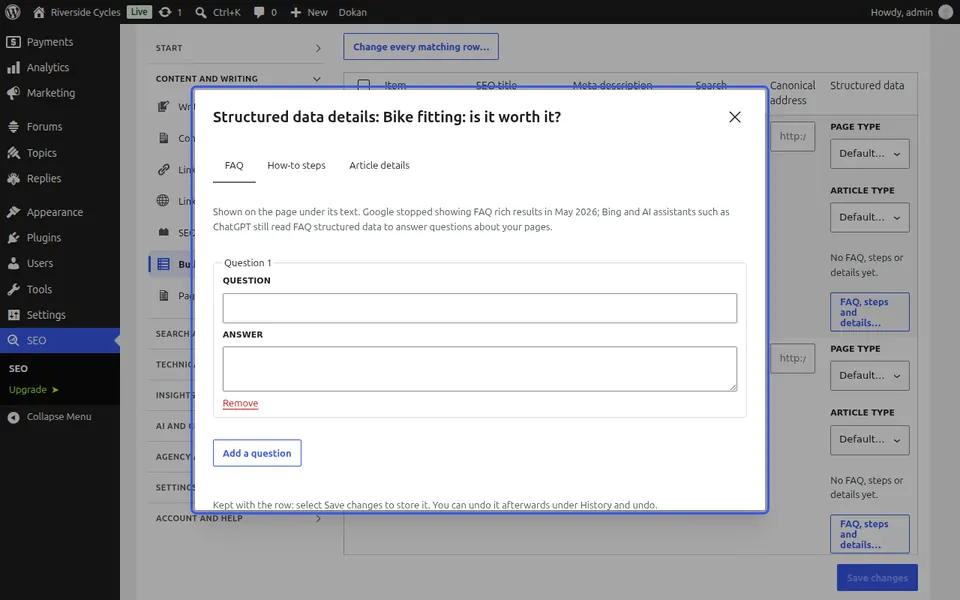
Add an FAQ, steps or details
Select FAQ, steps and details on a row. Write questions and answers, how-to steps, a product's brand, model, material, colour and size, or an article's summary, keywords and main topics. Select Check to test it against schema.org and Google's rules, then Keep these details. Something the check calls wrong is not kept.
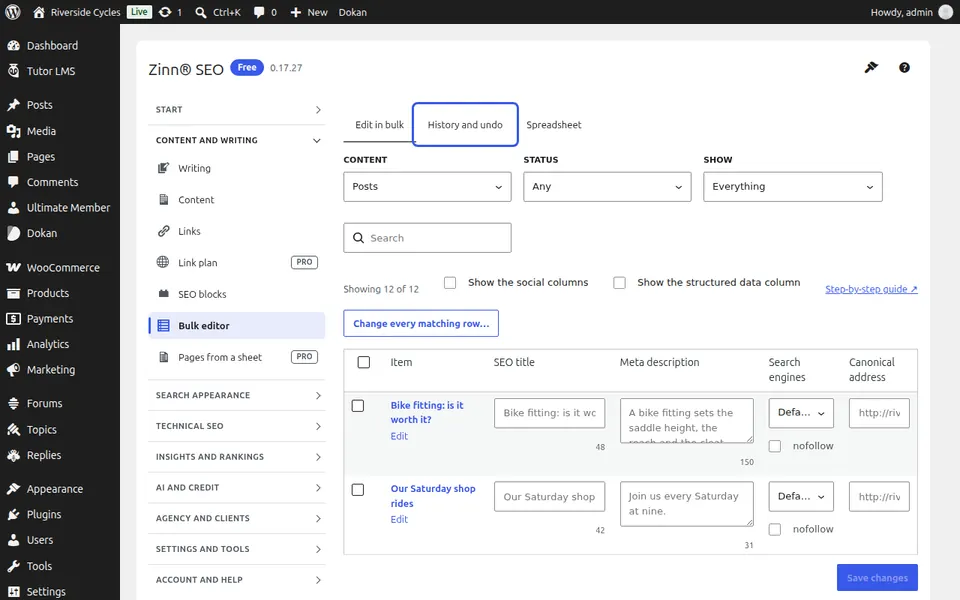
Save, change many, or undo
Select Save changes: every edited row is saved together. To give every matching page the same page or article type, use Change every matching row. Every save can be undone from the History and undo tab, which puts back only what nobody has changed since.
Next guide: Get rich results in Google Search
From the same team
Want fast hosting to go with it?
Zinn Digital® hosts WordPress on its own servers, with a CDN, DNS, TLS and daily backups included in every plan.