 Zinn® SEO
Set the image and text for social sharing
Choose what people see when your pages are shared on Facebook, X, LinkedIn and other networks.
Zinn® SEO is not released yet. This guide shows how it works today.
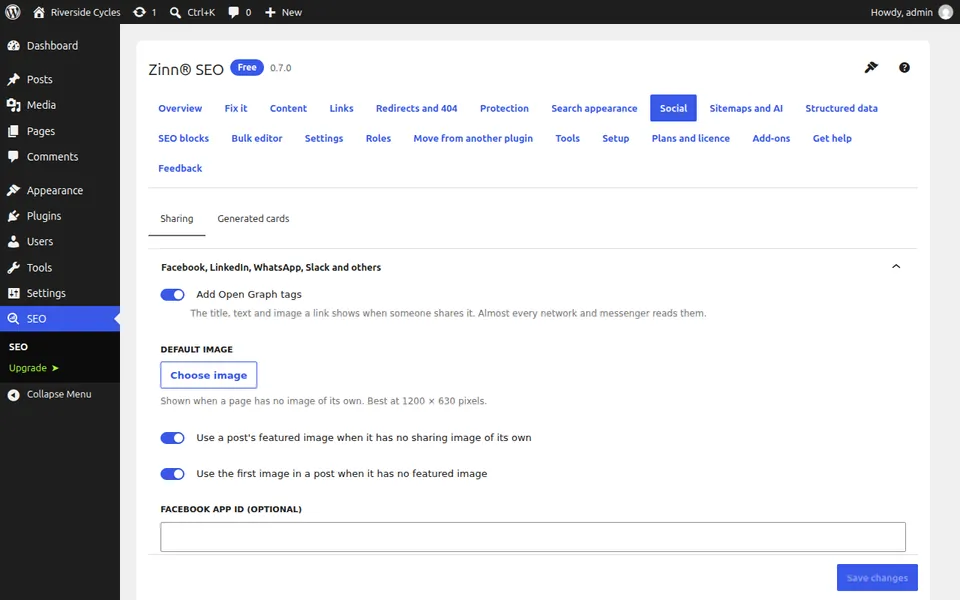
Open Social
Go to SEO, Social and stay on the Sharing tab.
Choose a default image
Pick the image used when a page has none of its own. Zinn® SEO otherwise uses the page's featured image or the first image in its text.
Set one page's own image and text
In the editor, open the SEO panel and fill in Title when shared, Text when shared and Image when shared for that page.
Pro: branded cards
With Pro, the Generated cards tab draws a branded image for each post from its title and your colours, so every share looks designed.
Next guide: XML sitemap in WordPress: where yours is and how to check it
From the same team
Want fast hosting to go with it?
Zinn Digital® hosts WordPress on its own servers, with a CDN, DNS, TLS and daily backups included in every plan.