 Zinn® SEO
Redirect a page in WordPress and fix 404 errors
Add a redirect, let the plugin write them when pages move, and turn the 404 list into fixes.
Zinn® SEO is not released yet. This guide shows how it works today.
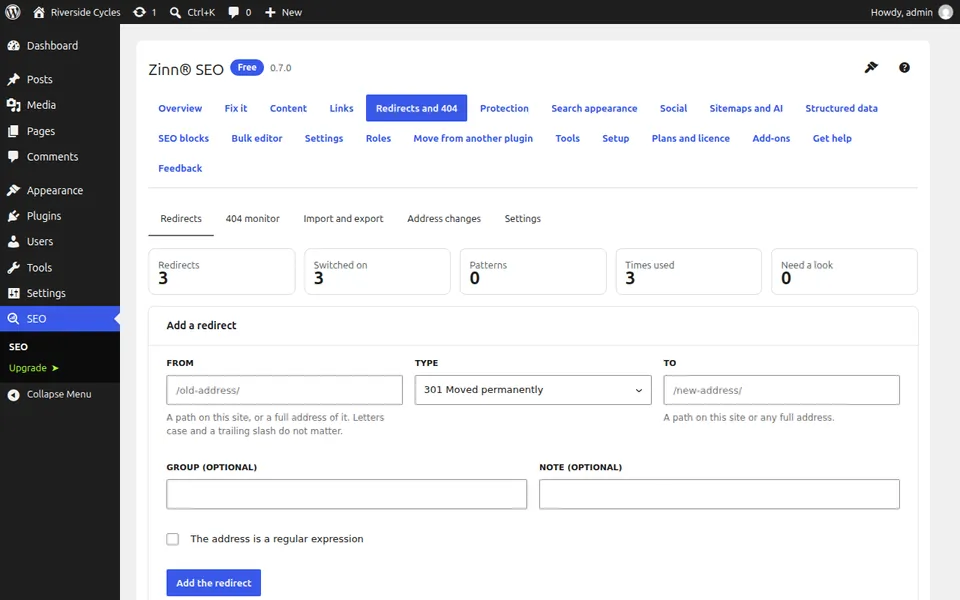
Open Redirects and 404
Go to SEO, Redirects and 404. The Redirects tab lists every rule with where it sends visitors, its type and how often it has been used.
Add a redirect
Enter the old address and the new one and choose the type. 301 Moved permanently is right for a page that has moved for good. Use the tester to follow every hop before you save.
Let moved and deleted pages redirect themselves
When you change a slug, the redirect is written for you. On the Settings tab, choose what a deleted page does: send visitors to its parent or category, answer gone (410), or do nothing.
Work through the 404 monitor
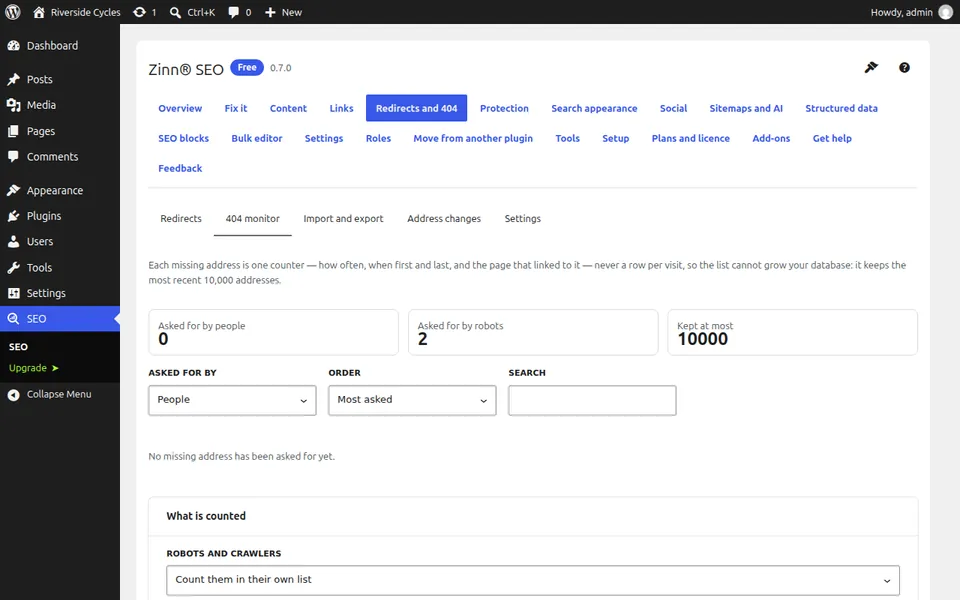
The 404 monitor tab lists each missing address with how often it was asked for, where it was linked from and the page it probably meant. One click turns a row into a redirect.
Plan a permalink or domain change
On the Address changes tab you see every address that will move. The redirects are written first, and the new structure is switched on only when the last one is in place.
Next guide: Add a Quick Answer block
From the same team
Want fast hosting to go with it?
Zinn Digital® hosts WordPress on its own servers, with a CDN, DNS, TLS and daily backups included in every plan.